How to Create Professional YouTube Thumbnails Without Design Skills
You don't need expensive software or design expertise to create compelling thumbnails. Learn the tools, templates, and techniques that make professional-quality thumbnails accessible to everyone.
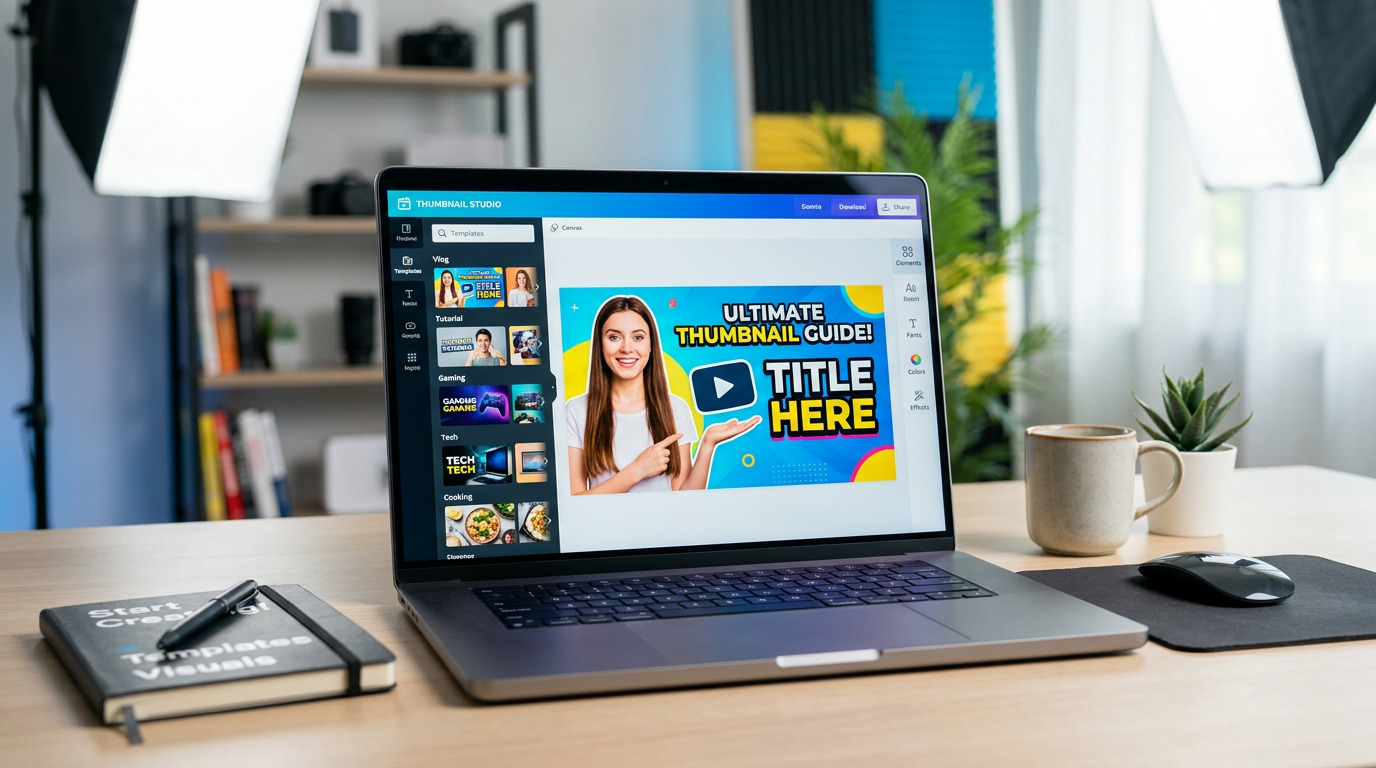
How to Create Professional YouTube Thumbnails Without Design Skills
Many creators believe professional thumbnails require expensive software and years of design training. This misconception holds back channels that could otherwise thrive. The truth is that several accessible tools and straightforward techniques enable anyone to create compelling thumbnails.
The Foundation: Understanding Basic Design Principles
Before diving into tools, grasp these fundamental concepts that apply regardless of your skill level.
Contrast Creates Clarity
Your thumbnail must be legible at small sizes. High contrast between text and background ensures readability. Dark text on light backgrounds or light text on dark backgrounds works consistently.
Quick Test: Shrink your thumbnail to the size it appears in mobile feeds. Can you still read the text? If not, increase contrast.
Focus Points Guide the Eye
Viewers should immediately know where to look. A single dominant element—whether a face, object, or text—creates clear focus and communicates your video's topic instantly.
Practical Rule: Ask yourself what the most important element is. Make it the largest, brightest, or most prominent feature in your design.
Consistency Builds Recognition
Maintaining a consistent style across thumbnails helps viewers recognize your content instantly. Choose a color scheme, font style, and layout approach that becomes your channel's visual signature.
Free Tools That Rival Professional Software
Canva: The Beginner's Best Friend
Canva offers an intuitive interface with thousands of customizable YouTube thumbnail templates. The free version provides ample functionality for most creators.
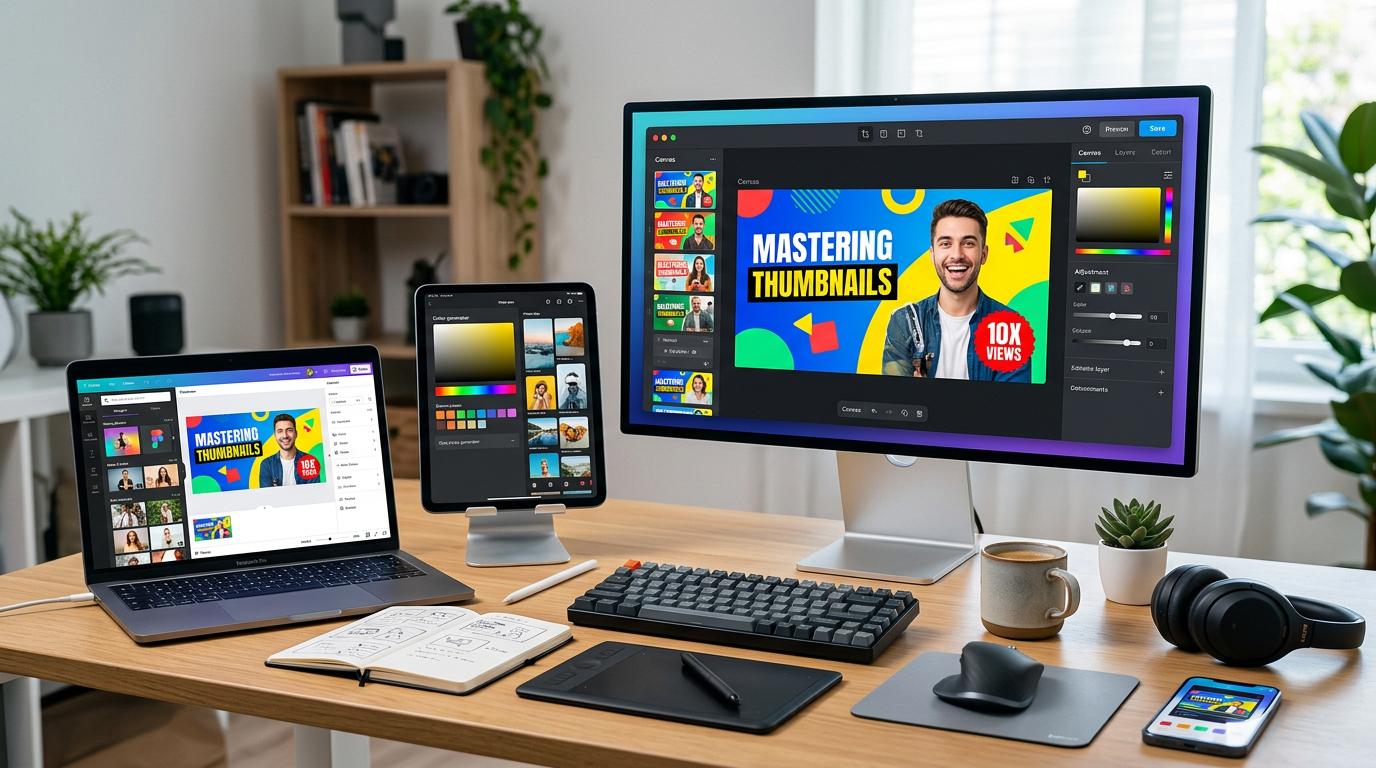
Figure 1: Collection of free design tools and apps interface, modern UI mockups, professio...
Getting Started:
- Search "YouTube thumbnail" in Canva's template library
- Select a design matching your video's mood
- Replace placeholder images and text with your content
- Download in PNG format for best quality
Pro Tip: Create a custom template based on a successful design. Duplicate and modify it for future videos to maintain consistency.
Photopea: Browser-Based Photoshop Alternative
Photopea replicates most Photoshop features within your browser. It's free, requires no installation, and handles layered designs professionally.
Best For: Creators comfortable with more advanced editing who still want free tools.
YouTube Studio's Built-in Editor
Often overlooked, YouTube Studio includes basic thumbnail creation tools. While limited, these built-in options suffice for simple, clean designs.
Use Case: Quick thumbnails for straightforward content where design complexity isn't necessary.
Mobile Apps for Thumbnail Creation
Creating thumbnails on mobile devices has become surprisingly robust. Several apps enable professional results directly from your smartphone.
Recommended Apps:
- Adobe Express: Combines templates with customization options
- Pixlr: Offers advanced editing features in mobile format
- PixelLab: Excellent for text-heavy designs with creative typography
Workflow Tip: Capture photos directly within these apps, then design thumbnails immediately. This streamlines the process and ensures your imagery matches your vision.
Template Customization Strategy
Templates provide structure while allowing personalization. Effective customization follows a systematic approach.
Step 1: Choose Relevant Templates
Select templates matching your content category. Gaming thumbnails differ from educational designs. Starting with an appropriate template reduces modification needs.
Step 2: Replace, Don't Add
Resist the urge to add elements to templates. Instead, replace existing components with your content. Adding creates clutter; replacing maintains design balance.
Step 3: Maintain Color Harmony
When customizing colors, stay within similar tone families. If a template uses warm colors, replace them with other warm colors rather than introducing clashing palettes.
Step 4: Preserve Text Hierarchy
Templates typically establish text hierarchy through size and positioning. Maintain this hierarchy when replacing text to preserve the design's effectiveness.
Image Selection Made Simple
Using Your Own Photos
Screenshots from your video often make the best thumbnail images. They're relevant, authentic, and require no additional resources.
Best Practice: During recording, intentionally create "thumbnail moments" with expressive reactions or clear demonstrations. Mark these moments for easy retrieval later.
Free Stock Photo Resources
When you need supplementary imagery, several free resources provide professional-quality photos:
- Unsplash: High-quality photography across categories
- Pexels: Diverse image library with commercial use rights
- Pixabay: Mix of photos, illustrations, and vectors
Usage Guideline: Select images that complement your content without competing with your primary focus. Stock photos work best as backgrounds or supporting elements.
Text That Works
Keep It Short
Three to five words maximum. Every additional word reduces impact and legibility. Your title provides details; your thumbnail captures attention.
Choose Readable Fonts
Sans-serif fonts like Arial, Helvetica, or Roboto remain legible at small sizes. Avoid decorative fonts that sacrifice clarity for style.
Create Text Contrast
Add drop shadows or text backgrounds to ensure your words remain readable against any image. Canva provides these effects with simple toggles.
The 15-Minute Thumbnail Workflow
This streamlined process creates effective thumbnails efficiently:
Minutes 1-3: Select 2-3 candidate images from your video or stock sources
Minutes 4-7: Choose an appropriate template and replace placeholder content
Minutes 8-12: Customize colors and text while maintaining design integrity
Minutes 13-15: Export, upload to YouTube, and verify appearance in feed preview
Common Mistakes to Avoid
Overcrowding with Elements
Less truly is more. Each additional element dilutes the impact of others. If uncertain whether to include something, leave it out.
Ignoring Mobile Appearance
Most YouTube views occur on mobile devices. Always verify your thumbnail's mobile appearance before finalizing.
Inconsistent Branding
Random style changes confuse viewers and weaken brand recognition. Establish guidelines and follow them consistently.
Text That's Too Small
What seems readable on your large monitor may disappear on mobile screens. When in doubt, make text larger.
Conclusion: Start Simple, Improve Gradually
You don't need design expertise to create effective thumbnails. Begin with templates and simple techniques. As you become comfortable, gradually incorporate more advanced elements. The key is starting now rather than waiting until you've mastered design theory.
Remember that even simple, well-executed thumbnails outperform complex, poorly-designed alternatives. Focus on clarity, consistency, and relevance. Your thumbnails will improve naturally as you create more content and learn what resonates with your audience.
jackyi
YouTube content strategist and thumbnail optimization expert. Passionate about helping creators grow their channels through data-driven design and SEO best practices.